
Using the Media Library in the Content Partner Portal
Overview
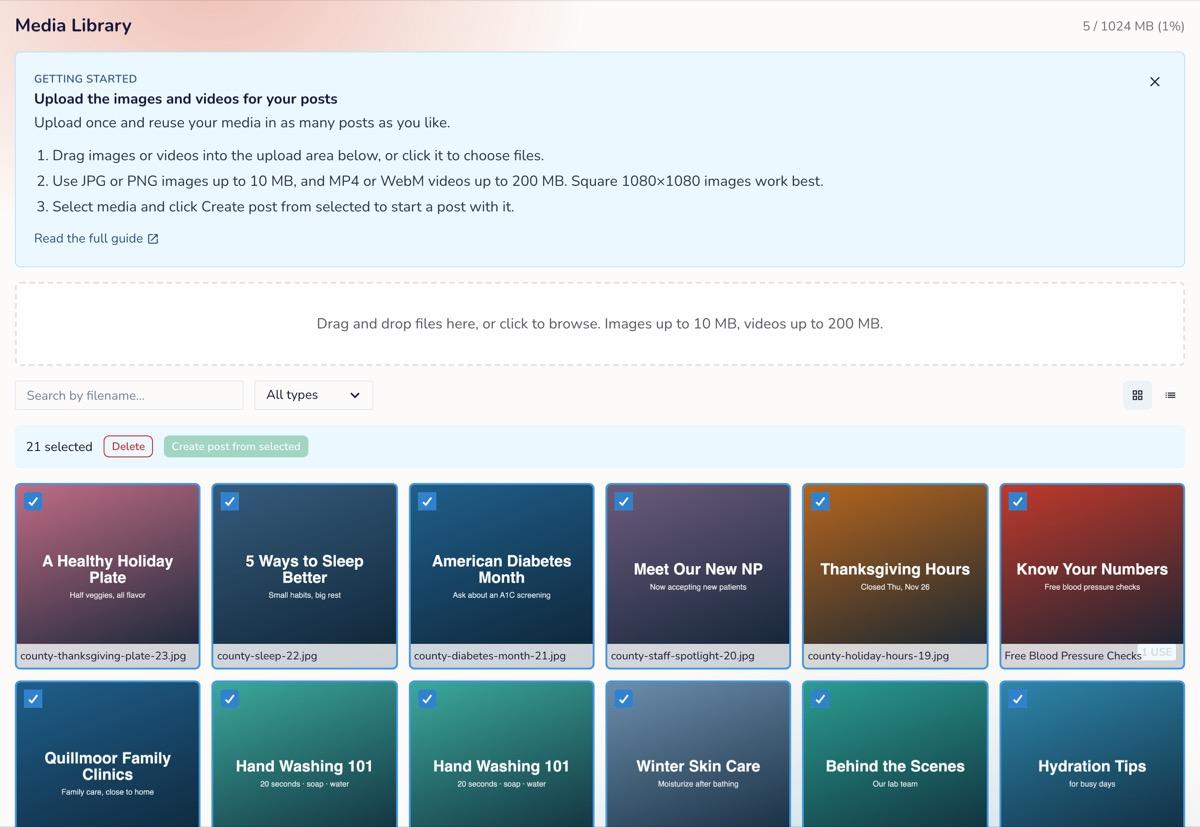
Media holds the images and videos you use in your posts. Upload once and reuse them in as many posts as you like.
Uploading
- Go to Media.
- Drag images or videos into the upload area, or click it to choose files.
| File type | Formats | Maximum size |
|---|---|---|
| Images | JPG, PNG | 10 MB |
| Videos | MP4, WebM | 200 MB |
Recommended image sizes: 1080×1080 (square) or 1080×1350 (portrait). Square works best when the same image goes to both Facebook and Instagram.
The top of the page shows how much of your plan's storage you've used.
Using Media in a Post
- From Media: select up to 20 images or videos, then click Create post from selected. With more than 20 selected, the button is disabled.
- From a post: while creating content, click Browse library, or drop new files into the upload area.
Deleting Media
Select the items and click Delete. Media that's attached to a post can't be deleted; remove it from those posts first.
Troubleshooting
| Issue | Fix |
|---|---|
| "File too large" | Compress the file, or trim the video |
| "You've reached your media storage limit." | Delete files you don't need, or ask about more storage |
| "This media is attached to content and can't be deleted." | Remove it from every post that uses it, then delete |
| "Animated GIFs are not supported" | GIFs aren't supported, animated or not. Use JPG or PNG, or a short MP4 video for animation |