
Sending a Swarm Broadcast in the Content Partner Portal
Overview
If your organization runs a Swarm program, Swarm lets you send a post to the Facebook and Instagram pages of the practices in your network. Each post goes out from the practice's own page. Practices see a preview first and can remove it.
Swarm appears in your portal menu only if your organization has a Swarm program. Owners and Managers can create broadcasts and change Swarm settings once your organization is approved. Until then, the Swarm pages are view-only.
Before You Start
You need at least one approved post in Content with an image or video for Facebook or Instagram. Stories can't be broadcast. If you don't have one yet, the Broadcasts page tells you why and links to Create content.
How to Send a Broadcast
- Go to Swarm, click Broadcasts, then click New broadcast.
- Enter a Name (only your team sees it), choose the Content, and click Create draft.
 3. Wordings: edit the caption. Optionally:
- add the practice's name, city or state with + Practice name, + City or + State, and fill in Caption without personalization;
- add up to four wordings to compare.
Click Save wordings, then Approve this wording on each. 4. Audience and timing:
- Choose Whole network, Saved audiences or a Custom rule.
- Choose One day, Over a business week or Over a date range, starting at least 2 days from today.
- Click Save audience and timing.
- Check Estimated reach, then click Schedule and confirm.
Each practice's post goes out between 7 AM and 9 PM local time. Practices get a preview email about a day before, and can remove the post or, in approval mode, approve it.
After Scheduling
- The Broadcasts list shows newest first. Click Name, Status or Dates to sort by that column; click again to reverse it, and a third time to go back to newest first.
- The broadcast page shows the Delivery table as posts publish.
- Stop broadcast cancels posts that haven't published yet. You'll be asked for a reason. A post already being sent may still publish.
- Copy to new draft reuses a broadcast's settings.
- Archiving the post in Content also stops every broadcast that uses it. While a broadcast is using a post, you can't change the post's images or video.
Saved Audiences
To reuse an audience rule, go to Swarm, click Audiences, then click New audience. Saved rules appear under Saved audiences when you set up a broadcast.
Your Network
The Swarm page shows how your broadcasts are doing. Its Members tab lists the practices in your network, and Sharing details shows more about the practices that agreed to share details with you.
Your Swarm Settings
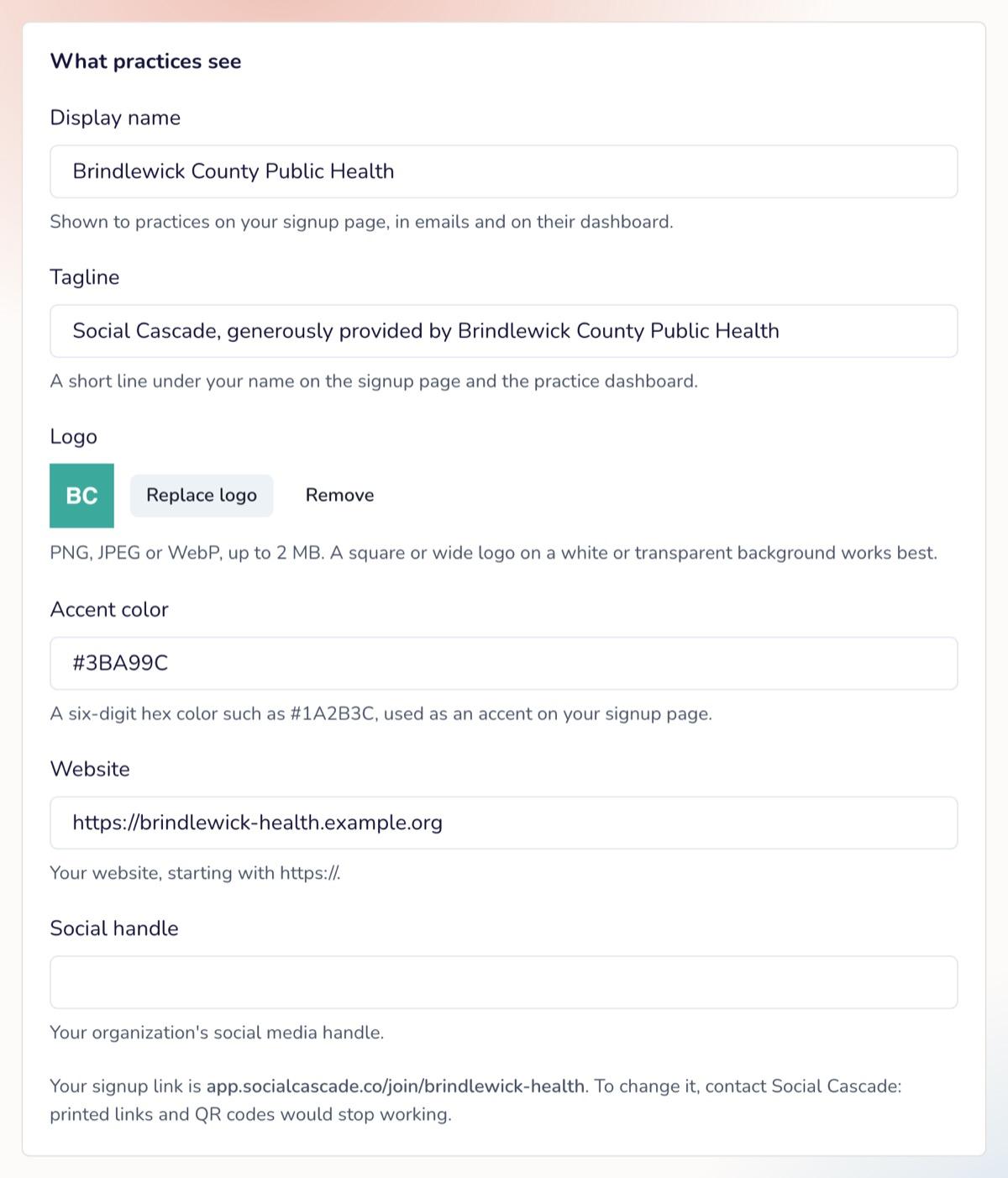
Go to Swarm and click Settings to change what practices see:
- Display name: shown on your signup page, in emails and on practices' dashboards. If you change it, practices partway through joining are asked to review and agree again. Practices that already joined aren't affected.
- Tagline, Logo, Accent color, Website and Social handle.
- Disclosure text (under Sponsor line on posts): added word for word to the caption of every post you send, after your wording. Leave it blank for no line. Broadcasts you've already scheduled keep the line they were scheduled with; the new line applies to broadcasts you schedule after saving.
Click Save changes. Your signup link is shown on the same page. To change it, contact your Social Cascade account manager, because printed links and QR codes would stop working.
Limits
| Rule | Detail |
|---|---|
| Platforms | Facebook and Instagram |
| Start date | 2 to 90 days from today |
| Posts per practice | Up to 2 Swarm posts a month |
| Instagram caption | 2,200 characters, including your sponsor line and the practice's disclaimer |
Related Articles
- Getting Started with the Content Partner Portal
- Creating and Submitting Content in the Content Partner Portal
For the full partner guide, contact your Social Cascade account manager.