
Getting Started with the Content Partner Portal
Overview
The Content Partner Portal (content.socialcascade.co) is where health organizations publish content for Social Cascade practices: posts, text series templates and teleprompter scripts. Once approved, your content reaches the practices that subscribe to your stream, and practices share it with their own patients and followers.
Sign in at https://content.socialcascade.co.
Before You Start
- Your organization needs to be approved.
- New organizations are usually approved within 1 business day.
- While you wait, you can upload media and create drafts of posts and scripts.
- You can submit them once you're approved.
- Roles:
- Owners manage billing, team members and all content.
- Managers create, edit and submit content.
Your First Steps
- Fill in your profile. Go to Settings → Profile. Add your logo, description, website and the practice types your content is for. Practices see your description when they browse your content. Add Social attributions if you want a credit line added when practices share your posts on Facebook (up to 240 characters) or Instagram (up to 120). Stories don't show the credit line.
- Invite your team. In Settings → Team, Owners can invite Managers or other Owners. Your plan sets how many seats you have.
- Upload media. Go to Media and drag images or videos into the upload area. See Using the Media Library.
- Create your first post. Go to Content → New content, then add a title, caption and media. Facebook and Instagram are already selected under Platforms. Click Submit for review. See Creating and Submitting Content.
- Watch it go live. After Social Cascade approves a post, it shows as Published and practices can use it. Analytics shows how it performs.
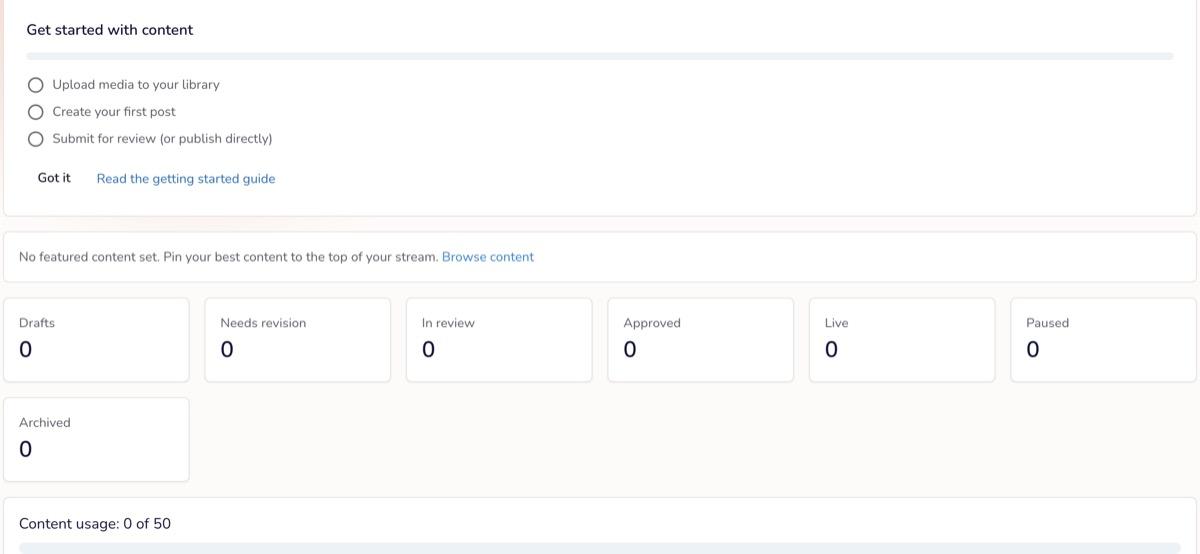
The Get started with content checklist on your Dashboard tracks your first upload, post and submission. Each tool page also has a Getting started card.
The Tools in Your Portal
| Tool | What it's for |
|---|---|
| Content | Social media posts (caption, images or video) that practices share. Guide |
| Text Series | SMS text series templates practices can send to patients (Publisher and Enterprise plans). Guide |
| Scripts | Teleprompter scripts practices read when recording videos. Guide |
| Media | Your library of images and videos. Guide |
| Analytics | How your content performs once practices publish it |
| Swarm | Only for partners in a Swarm program: send posts through your network's practices. Guide |
Plans and Limits
Your plan (Free, Publisher or Enterprise) sets how much content, media storage, team seats, scripts and streams you can have. The Dashboard shows your content usage. Text Series and the Generate caption, Improve with AI and Suggest Hashtags buttons need Publisher or Enterprise. To change your plan, an Owner can go to Settings → Billing.
FAQ
Q: Who reviews my content? A: Social Cascade. You'll get an email when an item is approved or needs revisions.
Q: Where do practices see my content? A: In your stream in the Social Cascade app. Approved text series appear in the Text Series Library, and approved scripts in the script library.
Q: Who do I contact for help? A: Email support@socialcascade.co, or click Contact Us in the portal's menu.