
Getting Started with Text Series
Overview
Text Series sends a sequence of automated educational text messages to patients who sign up. You build a series from a template or from scratch, launch it, and share a keyword, QR code or link so patients can join.
This article covers setup, building a series and launching it. To add people and handle opt-outs, see Adding Text Series Subscribers and Handling Opt-Outs. For sending hours, see Understanding Text Series Quiet Hours (TCPA).
Before You Start
- Your organization needs a texting plan. The Text Series menu item only appears once one is active. An Organization Owner adds it in Account Settings → Billing → View texting plans. See Managing Your Billing and Plan.
- You need the Admin role to set up the sending number and to add subscribers. Admins and Editors can launch a series.
- Messages may be read by anyone holding the patient's phone. Don't put patient names, diagnoses, medications or other health details in a message.
Step 1: Check Your SMS Settings
- Click your avatar (top right) → Account Settings.
- Click SMS Settings in the left sidebar.
- Review the cards at the top:
- Sending Number: the number your texts come from, marked Shared, Dedicated, BYON or Not configured.
- Monthly Usage: how many messages you've sent against your plan's monthly limit. At 90% it shows "You're approaching your monthly send limit."
- Timezone: the time zone used for scheduling and quiet hours.
- Quiet Hours: the 8:00 AM to 9:00 PM sending limit.
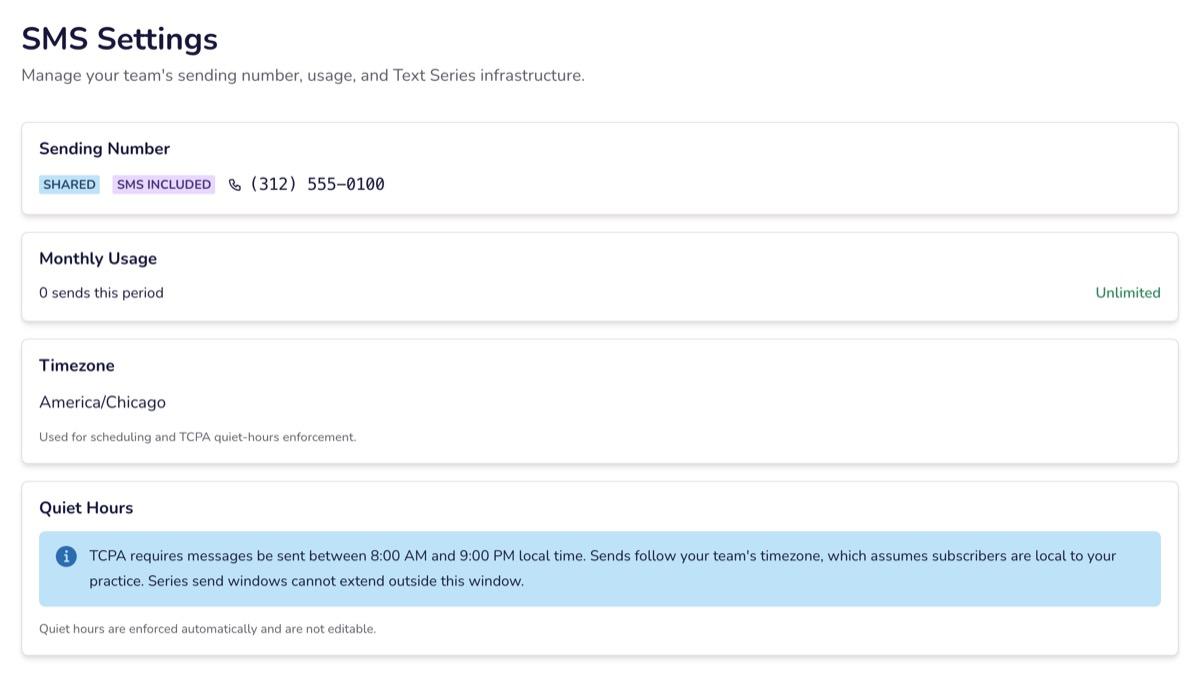
On Text Starter and the included texting tier, series send from a shared Social Cascade number, and you can go straight to Step 3.
Step 2: Register Your Brand and Number (Text Pro and Enterprise)
On Text Pro and Enterprise texting plans, your texts come from a dedicated number. Carriers require a registration (often called 10DLC registration) before that number can send. Only Admins see this section.
- On SMS Settings, find Brand Registration. Confirm you have everything on the checklist ready:
- your EIN (format XX-XXXXXXX)
- a business mailing address that matches IRS records
- the authorized representative's name, title, email and phone
- a live website starting with https
- a public privacy policy URL and a public terms of service URL
- one or two sample messages
- Click Start Registration and complete Business Information, Campaign Details, and Review & Submit.
- Choose a dedicated number and submit. Registration is included at no extra cost. The screen says approval typically takes 5–10 business days.
While the number is being set up, the tracker shows Setting up your number, Registering your brand, Activating your campaign, then Active. You can build series in the meantime, but you can't launch one until the number is Active.
If the screen shows Registration Rejected, Campaign Rejected or Registration Failed, click Edit and Resubmit, fix the details, and submit again.
Bring your own number (optional): if your practice already has a texting number with its own provider account, an Admin can connect it under Advanced: Bring Your Own Number (BYON) on the same page. Contact support if you're not sure whether this applies to you.
Step 3: Create a Series
- Click Text Series in the main menu. The page has the tabs My Series, Library, Landing Pages, Subscribers and Insights.
- Start the series one of two ways:
- Click Library, open a template, and click Use this template.
- Click New Series (or Create from scratch) and follow the steps About, Timing, Length and Signup, then click Create Series.
- The series is saved as a Draft.
Step 4: Edit the Series
Open the series and click Edit. The editor has these tabs:
| Tab | What you set there |
|---|---|
| Messages | The text of each message. A counter shows characters and segments; long messages cost more segments. |
| Landing Pages | Sign-up pages for this series |
| Intake | Questions you ask when someone signs up |
| Enrollment | The sign-up Keyword, Welcome message, Opt-in confirmation (reply YES prompt), STOP response and HELP response |
| Settings | Name, Message timing, cadence, Skip weekends, Send Window, Auto-pause on reply, late-enrollee policy and languages |
| Translations | Translated messages (Text Pro or Enterprise texting plans, or a Pro or Premier social plan) |
| Promote | QR code, share link and keyword instructions |
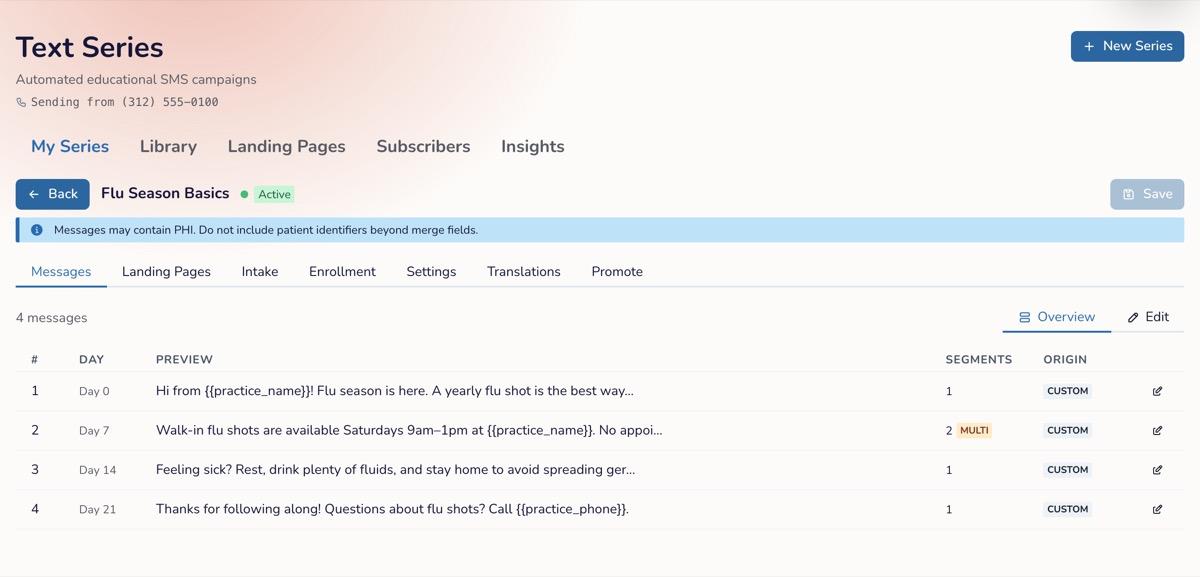 |
Write your Welcome message so it names your practice, says how often messages arrive, and says "Msg&Data rates may apply. Reply HELP for help, STOP to cancel." New series start with welcome text that does this. If you remove the opt-out and rates wording, Social Cascade adds "Msg frequency varies. Msg&Data rates may apply. Reply HELP for help, STOP to cancel." to the welcome message when it's sent.
Include your practice name and a phone number or email in your HELP response, so people who text HELP know who to contact.
Click Save when you're done.
Step 5: Launch the Series
- In the editor, click Launch. (Save your changes first; Launch is disabled while there are unsaved changes.)
- The Launch Series checklist confirms you have a sending number (Text Pro), at least one message, an enrollment keyword, and the welcome, opt-in confirmation, STOP and HELP texts.
- Tick I have reviewed all message content for accuracy and Messages comply with TCPA/CTIA and contain no PHI.
- Click Activate Series. The series status changes to Active.
Step 6: Let Patients Sign Up
Open the Promote tab:
- Series QR Code: click Download PNG to print it.
- Share Link: copy the sign-up link. The series must be Active for the link to work.
- Keyword Enrollment: patients text your keyword to your number.
To add people yourself, see Adding Text Series Subscribers and Handling Opt-Outs.
Managing a Series
Series statuses are Draft, Active, Paused and Ended. From My Series or the series page you can Pause, Resume, End Series, Duplicate or Edit. Only an Admin can delete a series, and only while it's a Draft.
Insights shows subscribers, messages sent, delivery rate and other results for the last 7, 30 or 90 days.
Troubleshooting
| Issue | Cause | Fix |
|---|---|---|
| I don't see Text Series in the menu | Your organization has no texting plan | Ask your Organization Owner to add one in Account Settings → Billing |
| "Your dedicated number must be fully provisioned before activating." | Your Text Pro number isn't Active yet | Check the tracker on SMS Settings and launch once it shows Active |
| "Dedicated numbers require an SMS Pro plan or higher." | Dedicated numbers are only on Text Pro and Enterprise | Use the shared number, or upgrade your texting plan |
| Launch is greyed out | You have unsaved changes | Click Save, then Launch |
| A checklist item fails in Launch Series | That field is empty | Fill it in on the Messages or Enrollment tab |
| The share link doesn't work | The series isn't Active | Launch or resume the series |
FAQ
Q: If a message falls on a weekend, does the whole series shift? A: No. Skip weekends moves only that one message to Monday. With a cadence of 1 or 2 days, a subscriber can occasionally receive two messages on the same Monday. See Understanding Text Series Quiet Hours (TCPA).
Q: Can I change the cadence after launch? A: No. Cadence and Skip weekends can only be changed while the series is a Draft.
Q: What should my messages say? A: General health education, such as tips for a child's age. Never include a patient's name, condition, medication or test results.