
Choosing Between the Classic Calendar and the Strategy Plan Calendar
Overview
Social Cascade has two calendar views:
- Classic calendar: a week or month grid of your scheduled posts. It's the calendar every team starts on, and the only one on Base.
- Strategy Plan calendar: a monthly planning view with plan preferences, Generate plan and Replan. It's available on Pro, Premier and Enterprise, and a team Admin has to turn it on.
How They Compare
| Classic calendar | Strategy Plan calendar | |
|---|---|---|
| Plans | Base, Pro, Premier, Enterprise | Pro, Premier, Enterprise |
| Layout | Week or month grid | Monthly plan with day statuses |
| Automatic scheduling | Auto-schedule fills the days and times you choose from your Streams (see Customizing Post Frequency) | Auto-plan drafts next month's plan on the 10th, which you review and confirm |
| Planning tools | Add posts day by day | Plan preferences, Generate plan, Replan, locked days |
| Turned on by | Default | A team Admin, in Account Settings |
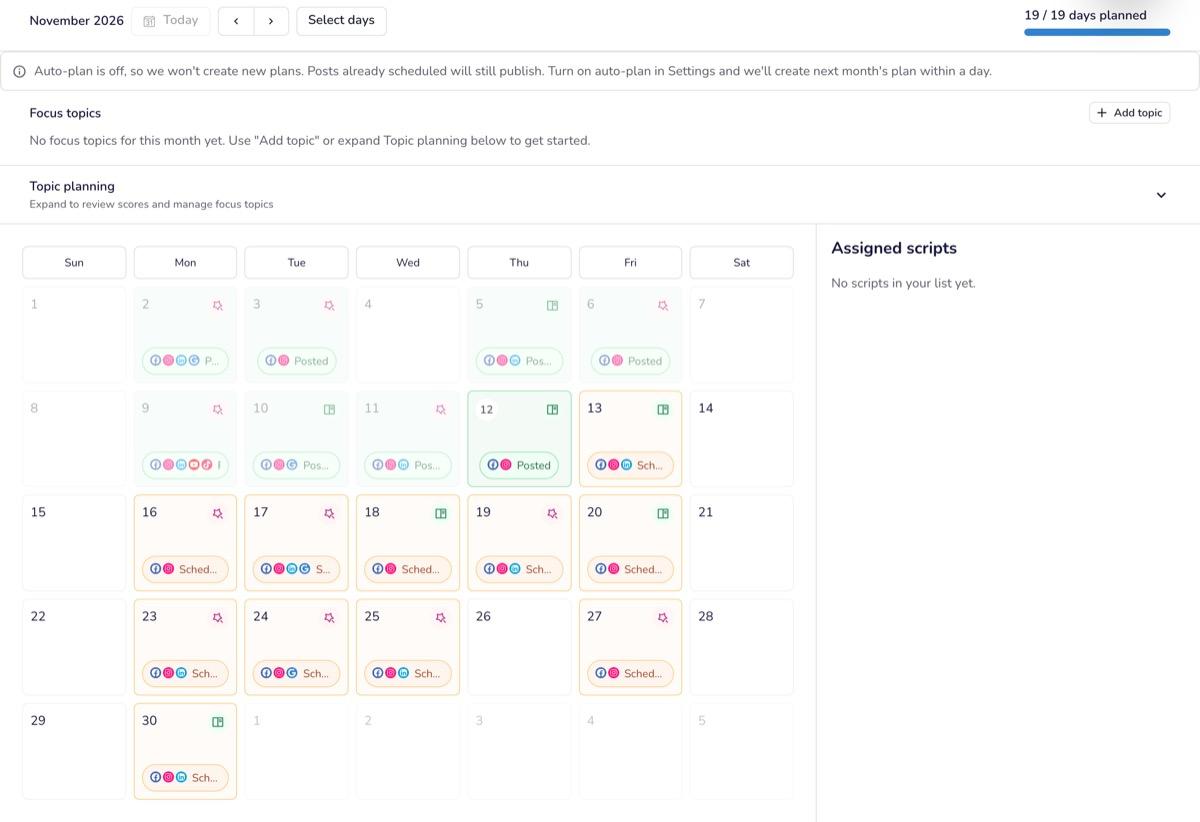 |
For how to plan with the Strategy Plan calendar, see Planning Your Month with the Strategy Calendar.
Before You Start
- Your team must be on Pro, Premier or Enterprise. Base teams don't see the setting.
- You need the Admin role on the team.
How to Turn On the Strategy Plan Calendar
- Click your avatar (top right) → Account Settings.
- On the Account page, scroll below the team members list to Scheduling.
- Turn on Strategy Plan calendar.

- In Switch to Strategy Plan calendar?, click Use Strategy Plan calendar.
Your existing scheduled posts stay where they are, and plan data is created as you use the new workflow. If your team uses the classic Auto-schedule, switching turns it off; the dialog will tell you so.
You can also turn it on from the classic calendar: Admins on Pro, Premier and Enterprise see a banner, "Try the Strategy Plan calendar for monthly planning with Generate plan and Replan.", with a Try Strategy Plan calendar button. Other team members see a note asking them to contact their team Admin. 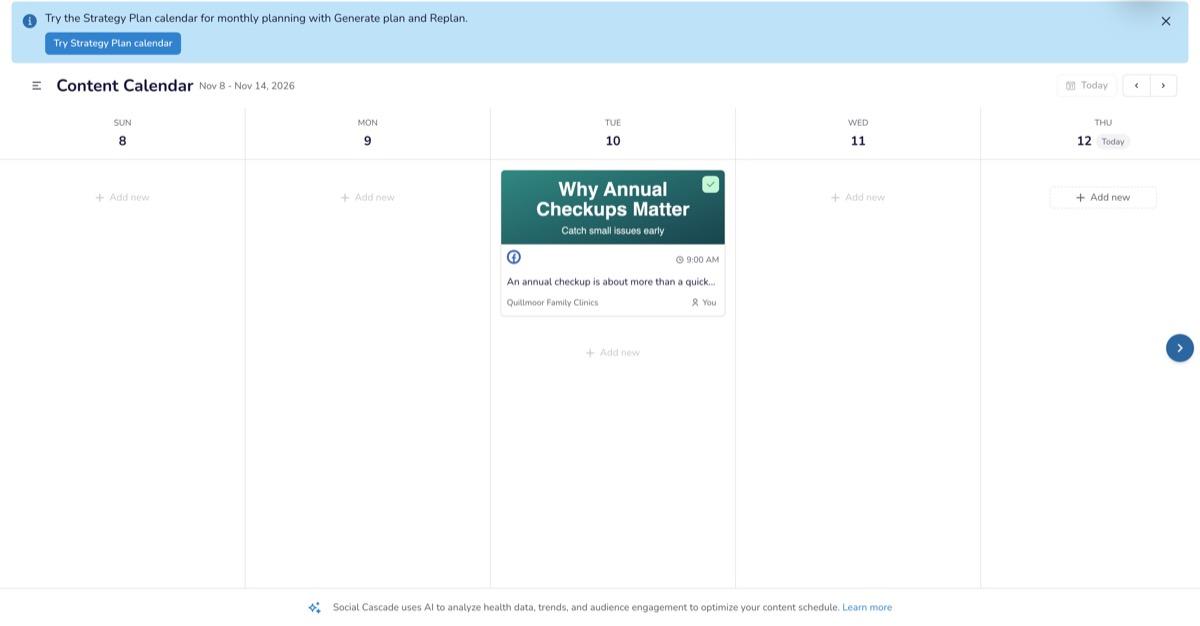
How to Switch Back to the Classic Calendar
- In Account Settings → Account → Scheduling, turn off Strategy Plan calendar.
- In Switch back to classic calendar?, click Use classic calendar.
Your Strategy Plan data is kept but hidden, and the classic calendar returns right away.
Automatic scheduling doesn't come back on by itself. After you switch back, the classic Auto-schedule stays off. Contact support if you want Social Cascade to fill your classic calendar automatically again.
What Happens When Your Plan Changes
- Upgrading from Base keeps you on the classic calendar. An Admin can turn on the Strategy Plan calendar afterwards.
- Downgrading to Base moves your team back to the classic calendar and turns Auto-schedule back on.
Troubleshooting
| Issue | Cause | Fix |
|---|---|---|
| I don't see Strategy Plan calendar in Account Settings | Your team is on Base, or you're not an Admin | Upgrade to Pro, Premier or Enterprise (see Managing Your Billing and Plan), or ask a team Admin |
| "Could not update calendar setting" | The change didn't save | Reload the page and try again |
| My team is on Pro but still sees the classic calendar | The Strategy Plan calendar is off | Turn it on in Account Settings → Account → Scheduling |
| Nothing is being scheduled automatically after switching back | Switching back doesn't restore Auto-schedule | Contact support |
FAQ
Q: Will turning on the Strategy Plan calendar delete my scheduled posts? A: No. Existing scheduled posts stay where they are.
Q: Can each team in my organization choose its own calendar? A: Yes. The setting is per team.