
Creating and Scheduling a Post
Overview
You can put a post on your Calendar three ways from the Add content window:
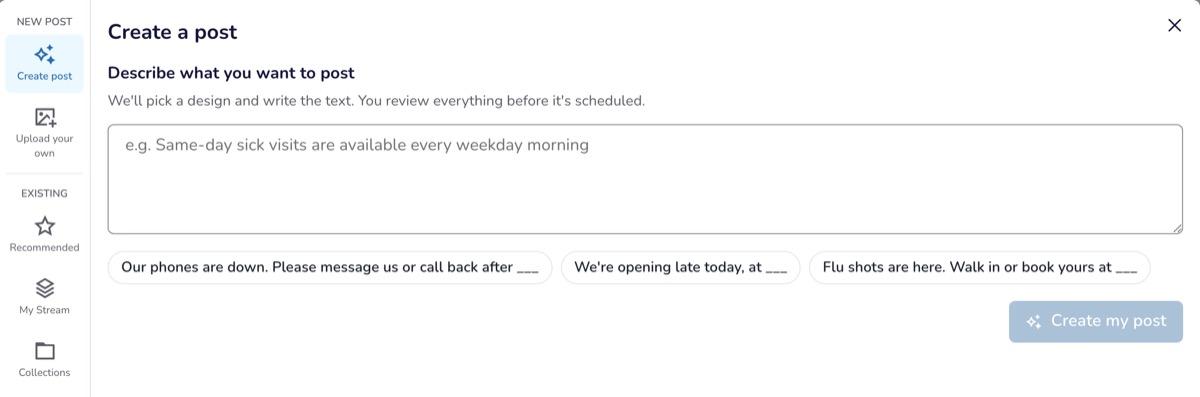
- Create post: make a designed post. Describe what you want to say, pick a design, and edit the text and colors.
- Upload your own: post an image you've already made, for example in Canva.
- Recommended, My Stream or Collections: schedule ready-made content. See Using the Recommended Tab in Add Content.
This article also covers rescheduling, replacing and deleting a post.
Before You Start
- You need the Admin or Editor role. Viewers can open the window but can't schedule.
- Connect at least one Facebook or Instagram account. See Connecting Social Profiles.
- Create post and Upload your own aren't available to teams that joined through a partner network.
How to Open Add Content
- Click Calendar in the main menu.
- On the day you want, click Add new. You can't add posts to days in the past.
- The Add content window opens. The rail on the left lists Create post and Upload your own under NEW POST, and Recommended, My Stream and Collections under EXISTING.
On the Strategy Plan calendar, open a day to add content. See Planning Your Month with the Strategy Calendar.
How to Create a Designed Post
- Click Create post.
- Under Describe what you want to post, type what the post is about, for example "Same-day sick visits are available every weekday morning." Click Create my post.
- Pick a design from the options shown.
- Edit the post:
- Choose a size: 4:5 portrait, 1:1 square or 9:16 story.
- Edit each line of text, or turn off Show on image to hide it. Check the text, including names, dates and times, before posting.
- Optionally add a Headshot.
- Open Customize design to change Colors (Use my brand colors needs colors in your Brand Kit), Background and Texture.
- Under Platforms, check the accounts to post to. Designed posts go to Instagram and Facebook.
- Write the Caption and Hashtags. Image description (alt text) helps people who use screen readers; if you leave it blank, the text on your image is used.
- Set the Date and Time, then click Schedule for [date and time].
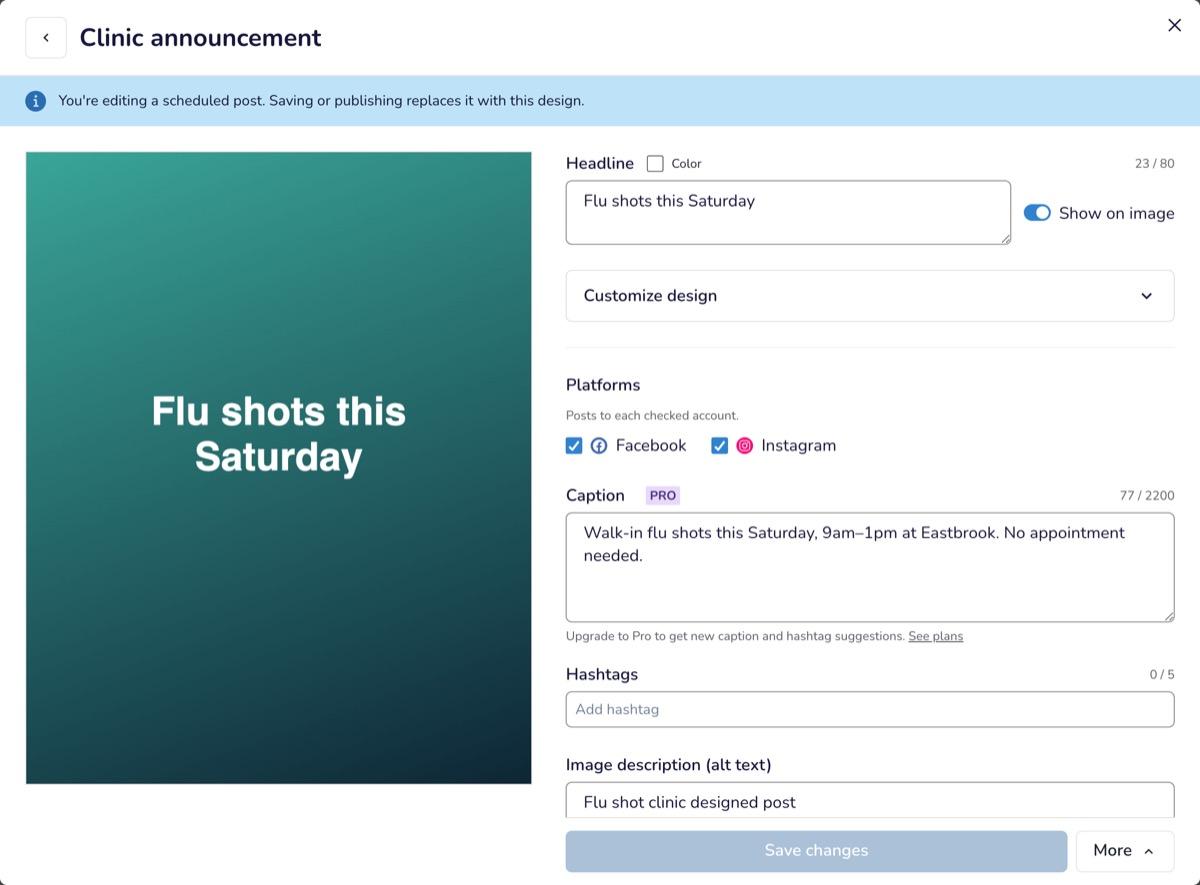
To save the design without posting, open More and choose Save to My Stream or Save as image.
Designed Post Limits
On the Base plan, designed posts are limited each month. Pro, Premier and Enterprise plans have no limit, and images you upload with Upload your own never count.
- A Base team can schedule 1 designed post a month unless your account has a different allowance.
- A post counts toward the month it's scheduled for, in your team's time zone.
- Scheduling the same design again, or a copy or version of it, is free, even in a later month.
- If you delete a scheduled designed post, its slot is freed for that month, unless the same design is still scheduled in another post.
When the month's designed posts are used, scheduling another shows: "You've already used your designed post for [Month]. Upload your own, or get unlimited with Pro." You can still upload your own image and schedule it.
How to Upload Your Own Image
- Click Upload your own.
- Drag in, paste or choose a PNG or JPG up to 10 MB.
- Under Platforms, check the accounts to post to. TikTok and YouTube need a video, so they're unavailable for images.
- If the image is taller than 4:5, choose Post as Story or Feed. Stories don't show captions.
- Write the Caption, Hashtags and Image description (alt text).
- Set the Date and Time, then click Schedule for [date and time].
Scheduling Rules
- Posts must be scheduled at least 60 minutes ahead. To post sooner, open More → Publish now and confirm. The post goes out in a few minutes.
- Times are in your computer's time zone and use 15-minute steps.
- When you schedule ready-made content that has versions for other platforms, you're asked Schedule on Other Platforms? Click Confirm to schedule them at the same time, or Skip this time.
How to Reschedule, Replace or Edit a Post
- Reschedule: drag the post to another day, or click it, change the Date or Time in Post Preview, and click Save. Posts that have already gone out can't be moved.
- Replace: click the post, then Replace, and choose new content. The toast says "Post replaced."
- Edit a designed post: click the post, then Edit design. Saving or publishing replaces the scheduled post with your new version.
How to Delete a Scheduled Post
- Click the post, then Delete.
- Choose Remove post for now. (selected by default) or Remove post and do not schedule again. The second option lets you add details and pick topics to avoid in future.
- Under "Would you like us to schedule an alternative post for the same date and time?", Yes, schedule a new post for me. is selected by default. Choose No, do not schedule a new post. if you don't want a replacement.
- Click Delete Post.
A replacement post is booked in the same slot unless you choose No.
Deleting a post that has already been published removes it from the social platform and your calendar, and can't be undone. Some platforms don't allow this; delete the post on that platform directly.
Post Statuses
| Status | Meaning |
|---|---|
| Scheduled | Waiting to publish |
| Posted | Published |
| Failed | Didn't publish. Click the post to see the reason for each platform. |
| Deleted | Removed |
Posts marked Social Cascade were scheduled automatically; posts marked You were scheduled by your team.
Troubleshooting
| Issue | Cause | Fix |
|---|---|---|
| "That time is too soon" or "Scheduling time too soon" | The time is less than 60 minutes away | Choose a later time, or use Publish now |
| "Only Editors and Admins can schedule posts" | You're a Viewer | Ask a team Admin to change your role |
| "Connect an Instagram or Facebook account in Settings to post this." | No Facebook or Instagram account is connected | See Connecting Social Profiles |
| "Use a PNG or JPG image." / "Images must be under 10 MB." | Wrong file type or size | Export as PNG or JPG under 10 MB |
| "Instagram can't post images this wide." | The image is wider than 16:9 | Crop it to 16:9 or narrower |
| I don't see Create post | Your team joined through a partner network, or designed posts are temporarily unavailable | Use Upload your own, or try again later |
| A post shows Failed | The platform rejected it, often because an account disconnected | Click the post to read the error, then see Troubleshooting Connections |
FAQ
Q: Can I post videos here? A: Upload your own takes images. To post video, use the Social Cascade Teleprompter app or the Web Teleprompter.
Q: Who writes the text on a designed post? A: Social Cascade picks a design and writes the text from your description. You review and edit everything before it's scheduled. On Pro, Premier and Enterprise, you can also get new caption and hashtag suggestions; Base teams see an upgrade prompt instead.