
Creating and Printing Your QR Code Poster
Overview
A QR code poster in your office lets patients and families follow you without typing anything. They scan the code with a phone camera and land on your clinic's Link In Bio page, which points them to your social profiles.
This article covers making the poster, printing it and choosing where to hang it. Displaying it completes Display QR signage in your practice on your Best Practices checklist.
Before You Start
- You need to be an Admin or Editor on the team to change a poster. Viewers can download one.
- Your team needs a Link In Bio page, because the QR code opens it. Only an Admin can name the page. See Setting Up Your Link in Bio.
- Your team needs a logo. Upload one on the Posters page or in Brand Kit. A PNG with a transparent background, at least 400 px wide and tall, prints best.
How to Create Your Poster
- Click your avatar (top right), then Account Settings → Posters.
- If the page asks for a logo or a Link in Bio shorthand, set those up first. The poster editor appears once both are saved.
- Pick a design in the Templates gallery. The gallery shows templates for your practice type. If your team has more than one practice type, use the filter at the top of the gallery.
- Edit the poster's text in the panel to the right of the preview. Keep the headline short so it reads from across the room, for example "Scan to follow us for health tips and practice updates."
- Check Practice name (on poster), Colors and Show logo. For details on each control, see Customizing Your Poster Design.
- Click Save.
- Click Download. The poster saves as a PNG image, named for its practice type (for example
family_medicine_poster.png).
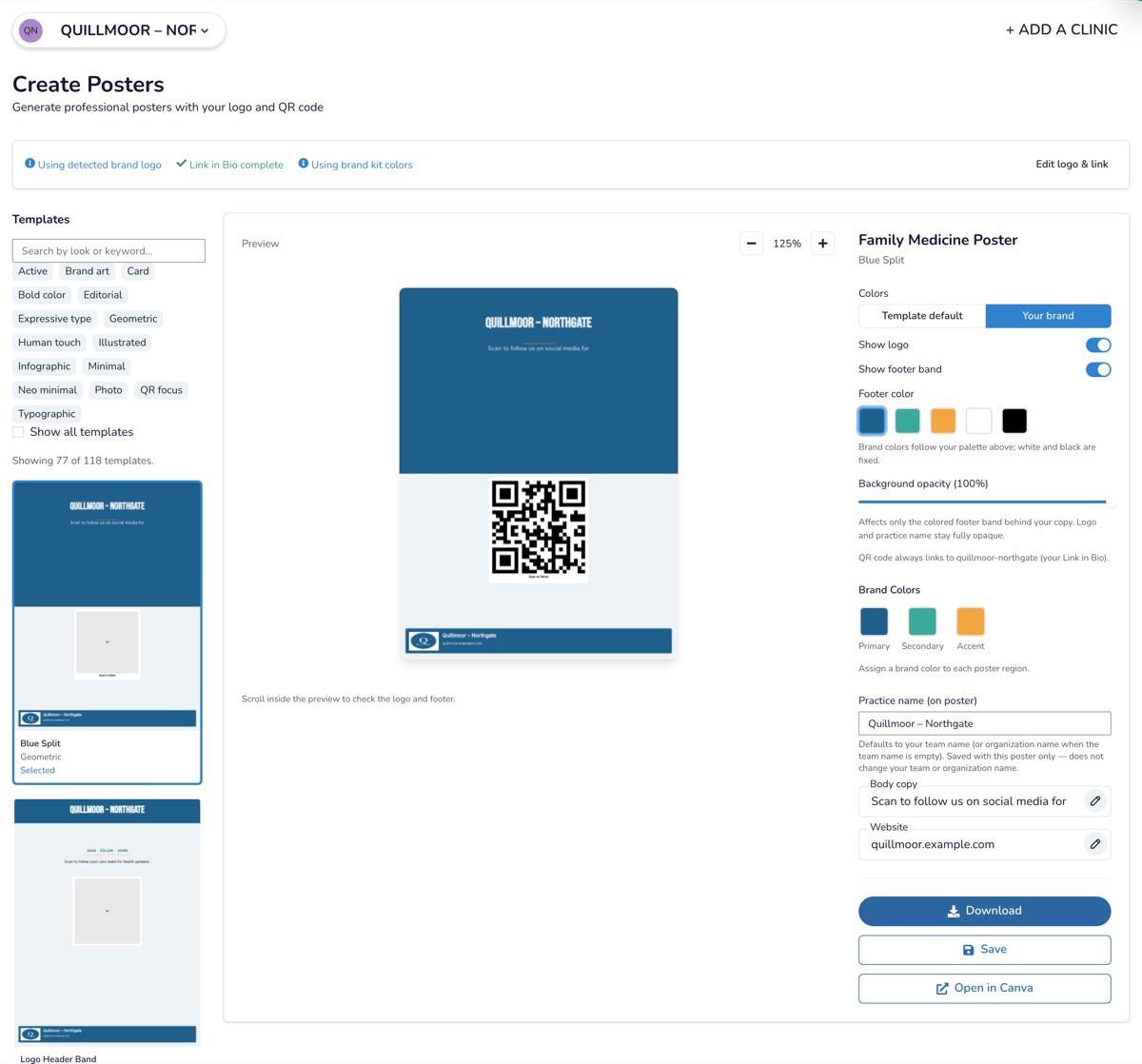
To change the layout further before printing, click Open in Canva. See Editing Posters with Canva.
Printing Your Poster
- Size: tabloid (11 × 17 in) or larger for waiting rooms. Letter size works on exam room doors.
- Paper: matte or satin paper cuts glare under office lights.
- Quality: print at full size from the downloaded PNG. A blurry QR code won't scan.
- Durability: laminate posters at the front desk and in busy waiting areas.
Where to Display It
Hang posters where patients and families stop and wait:
- Waiting room: visible from most seats.
- Front desk or check-in: at eye level near the line.
- Exam room doors: a reminder before checkout.
- Checkout counter: one last chance before they leave.
Avoid reflective glass and dim corners. They make the code harder to scan.
Marking the Checklist Item Done
- Open Best Practices from your Overview or from Account Settings → Best Practices.
- Under Amplify Your Reach, check Display QR signage in your practice.
See Best Practices and Account Health Score.
Troubleshooting
| Issue | Cause | Fix |
|---|---|---|
| The QR code won't scan | The print is too small or blurry, or there's glare | Print larger from the downloaded PNG, use matte paper, and move the poster out of glare. |
| The QR code opens the wrong page | The Link in Bio shorthand changed after you printed | Download and print a new poster. The QR code uses your current shorthand. |
| The logo looks blurry | The logo file is small | Upload a larger PNG logo (at least 400 px). |
| No templates or preview on the Posters page | A logo or the Link in Bio shorthand is missing | Follow the message on the Posters page. |