
Using the Inbox
Overview
The Inbox gathers comments and reviews from your connected social profiles in one place, so you can reply to them or delete them without opening each platform. It also holds your direct-message auto-response and the rules that reply to or delete comments for you.
The Inbox has four tabs: Comments, DMs, Reviews and Automated Responses.
Before You Start
- Connect your social profiles. See Connecting Social Profiles.
- Everyone on the team can read the Inbox. Only Admins can reply, delete, flag, or change auto-responses and rules. Other roles see those buttons disabled.
Comments
The Comments tab shows comments from Facebook, Instagram, TikTok and YouTube. New comments have a New badge, and the Inbox menu item shows New when there's something you haven't seen. 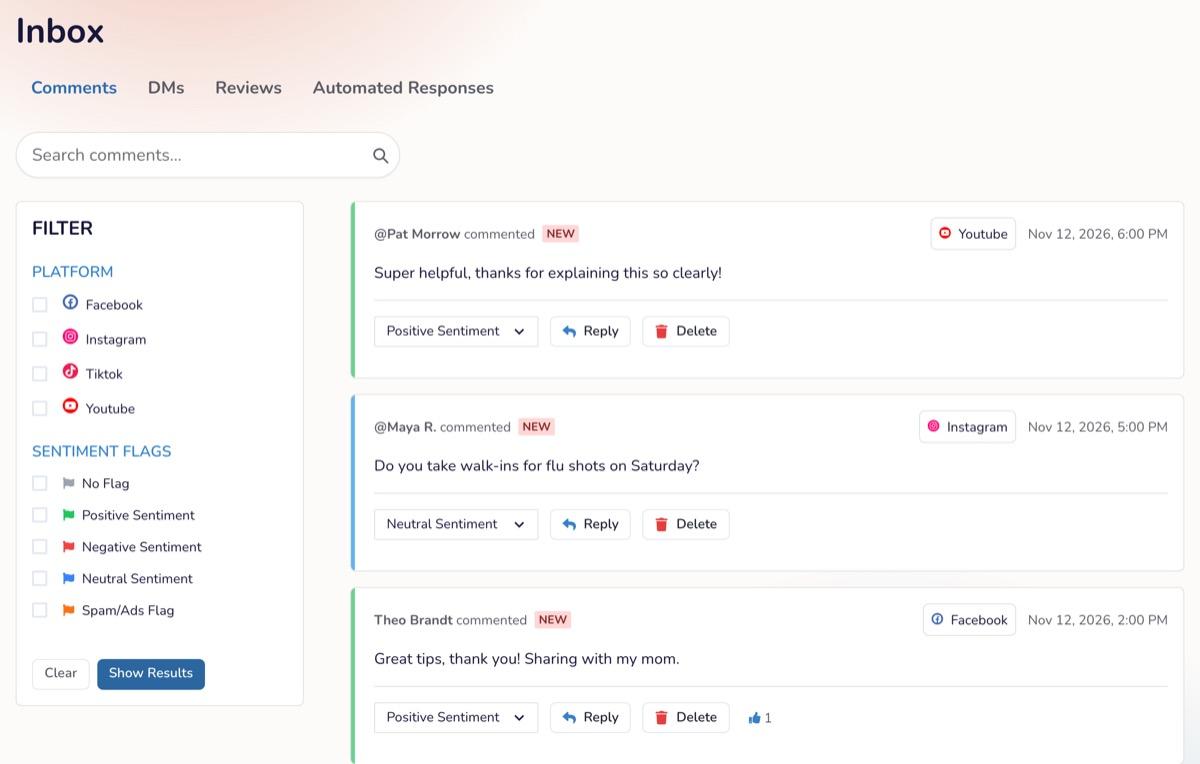
To reply to a comment:
- Click Reply on the comment.
- Type your reply (up to 1,000 characters), or pick a saved reply from Select a template.
- Click Send Reply.
To delete a comment: click Delete, then confirm. The comment is removed from the social network, and this can't be undone. If the network won't let Social Cascade delete it, the card shows Manual Delete: delete it on the platform yourself, then click Manual Delete → Mark as Deleted.
To delete several comments at once:
- Click Select above the list.
- Tick the comments to delete, or Select all shown.
- Click Delete selected, then Delete to confirm.
Social Cascade tells you how many were deleted. Any the social network wouldn't delete stay in your Inbox with Manual Delete, and any that failed stay selected so you can try again. If you delete a lot in a short time, you're asked to wait and try again later. Click Cancel to leave selection mode.
To find comments: type in Search comments..., or click the filter button and choose a Platform or Sentiment Flags, then click Show Results.
Sentiment flags: Social Cascade flags new comments as Positive Sentiment, Negative Sentiment, Neutral Sentiment or Spam/Ads Flag. To correct a flag, choose a different one from the dropdown on the comment.
Click View Thread to see replies to a comment.
For YouTube specifics, see Viewing YouTube Comments in Your Inbox.
Reviews
The Reviews tab shows Facebook recommendations, each marked Rating : Positive or Rating : Negative. You can reply to a review and change its sentiment flag. Reviews can't be deleted from the Inbox. 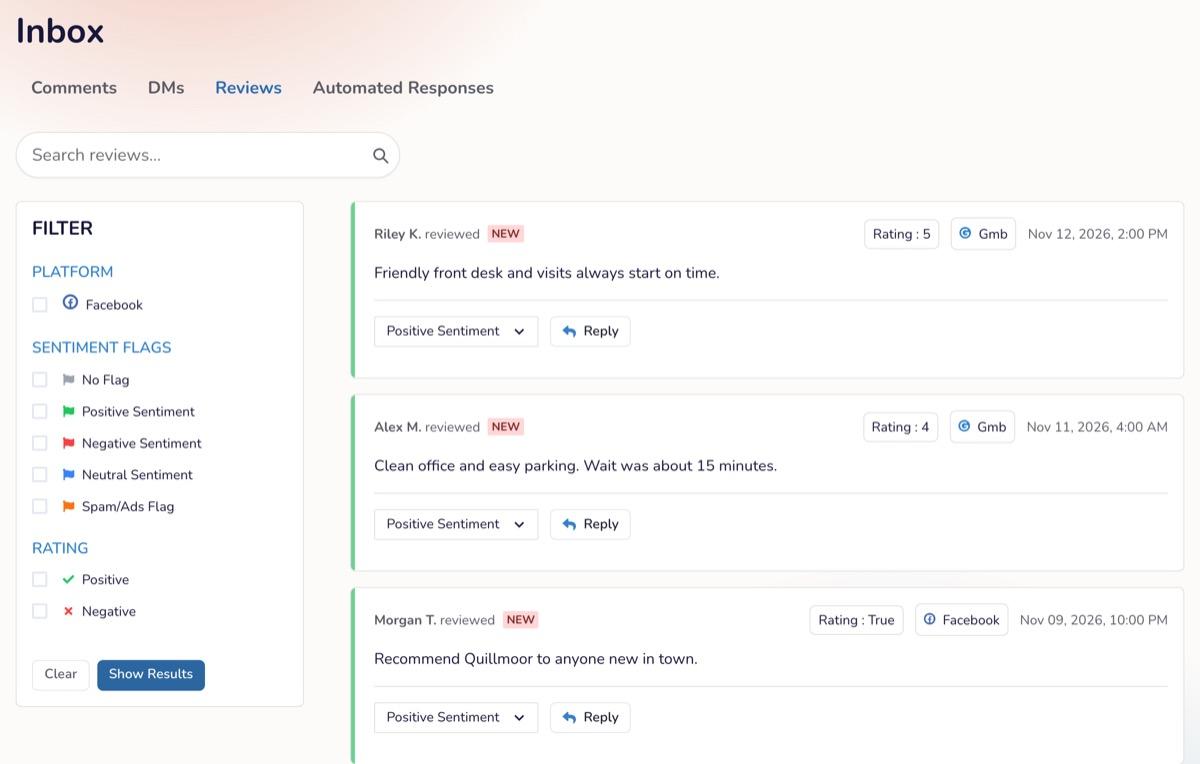
Filter by Rating, Platform or Sentiment Flags, or use Search reviews....
DMs: Setting Up an Auto-Response
The DMs tab doesn't show your messages. It sets one automatic reply that's sent to anyone who messages your Facebook Page or Instagram account.
- Click DMs. If you see Messaging not activated, click Activate Messaging.
- If you then see Relink Social Profiles, click it and relink your Facebook and Instagram accounts. See Reconnecting or Relinking Your Unlinked Facebook, Instagram, TikTok, or YouTube Account.
- Under DM Auto-Response Settings, click Edit Auto-Response Settings.
- Write the Auto-Response Message (up to 1,000 characters). The same message is used for every platform listed under Connected Platforms.
- Set Response Delay (seconds): how long to wait before replying. The default is 60.
- Turn the switch to Active, then click Save Changes.
To read and answer the messages themselves, use the Facebook or Instagram app.
Automated Responses: Rules and Reply Templates
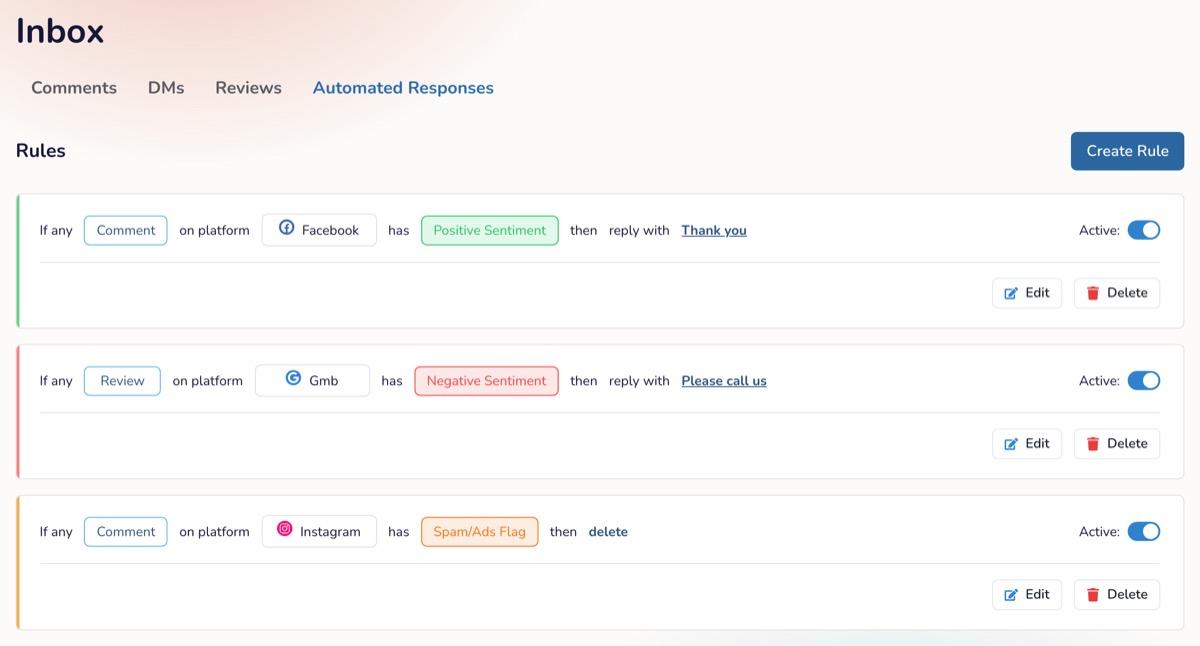
Rules act on new comments, replies and reviews as they arrive. Each rule reads as a sentence: "If any [Comment, Reply or Review] on platform [platform] has [sentiment flag], then [Delete or Respond with a template]."
To create a rule:
- Click Automated Responses, then Create Rule.
- Choose what the rule watches: Comment, Reply or Review.
- Choose the platform and the sentiment flag (or Any sentiment/flag).
- Choose Delete or Respond with and pick a reply template. Comments can be deleted or answered; replies can only be deleted; reviews can only be answered.
- Click Create.
Each rule has an Active switch, plus Edit and Delete. When more than one rule matches, only the first active match runs. Rules don't act on your team's own comments, on items with no text, or on comments that arrived before the rule was created.
Reply templates: create them from Add new template in any template list. Give each a Template title (up to 30 characters) and Template text (up to 1,000 characters). Deleting a template also deletes every rule that uses it.
Email Alerts
Admins can get a daily email about new comments and reviews. Click Set Up Alerts in the banner at the top of the Inbox, or see Setting Up Inbox Email Alerts (Daily Digest).
Troubleshooting
| Issue | Cause | Fix |
|---|---|---|
| Reply, Delete and the flag dropdown are greyed out | You're an Editor or Viewer | Ask a team Admin |
| "Reply too long" | The reply is over 1,000 characters | Shorten it |
| The card shows Manual Delete | The social network didn't allow the deletion | Delete it on the platform, then click Mark as Deleted |
| "You've deleted a lot of comments recently" | Too many deletions in a short time | Wait for the time shown, then try again |
| "A rule with these settings already exists" | A rule with the same trigger, platform and flag exists | Edit the existing rule instead |
| No comments from one platform | That profile is disconnected | See Troubleshooting Connections |
| The DMs tab says Relink Social Profiles | Messaging needs a fresh connection | Click Relink Social Profiles and reconnect |
FAQ
Q: Are Google Business Profile reviews in the Inbox? A: No. The Reviews tab shows Facebook recommendations only.
Q: Can I hide a comment instead of deleting it? A: Not from the Inbox. Hide it on the platform. See Hiding and Filtering Comments on Facebook and Hiding and Filtering Comments on Instagram.
Q: Can I like a comment from the Inbox? A: No. The thumbs-up count is shown for information only.